godoflaundrybaskets: (Default)
Tapermonkey? What is it?


This is a chrome extension that uses supports javascript files so that folks can build simple (and complex!) functions to help optimize daily tasks.

How does this relate to podfic?

There are many ways it can. The most obvious is installing scripts other folks have written. This is pretty straight forward for example using the Blanket Permission Highlighter or my own scripts to See Podfic First and adding these scripts to your browser!

Once you accumulate a few scripts now it's time to cause chaos :)


How does this relate to voiceteam?

Figure out a need you have and then solve it :D

The first thing I noticed about the mod dare was I did not want to search a page 10 times to see what words are there. I want to just be told whether or not a the word exists on the ao3 page. So I want to write a tapermonkey script to help me out.

Some familiarity with javascript/jquery can help out. Otherwise, just google whatever you're currently trying to do and copy code from stack overflow.


The headers:


So the first part of any tapermonkey script is the headers:

// ==UserScript==
// @name alert on mod dare
// @version 1.0
// @description adds a giant header to the top of the ao3 page letting you know that your word has been found
// @author GodOfLaundryBaskets
// @include http*://archiveofourown.org/*
// @require http://code.jquery.com/jquery-3.5.1.min.js
// @updateURL https://github.com/godoflaundry/fandom-scripts/blob/master/tapermonkey/moddare.pub.user.js
// @downloadURL https://github.com/godoflaundry/fandom-scripts/blob/master/tapermonkey/moddare.pub.user.js
// @grant none
// ==/UserScript==


The text after "@name" will be the name of your script. In my case "alert on mod dare"
The text after "@version" will be the version that shows up in tapermonkey. If this is a one off and you're not planning on sharing it doesn't matter too much.
The text after "@require" is important to indicate that I am using the jquery library. This is a super common one you'll see folks recommending since it adds a lot of functionality to javascript. I'm using version 3.5.1 of this library mostly because I stole it from the blanket permission highlighter script and that's what that script uses (along with a bunch of other libraries. Libraries basically add functionality on top of the base javascript langauage. For your one off script you probably don't need more than the jquery library.
The text after "@include" is what website this script will affect. For all of my scripts it's always limited to just ao3.
In this case, I want the alert to be shown on every page of ao3 so it's "http*://archiveofourown.org/*" where the "*" are wildcards. This means that as long as the url contains "http(s)://archiveofourown.org/" no matter what comes after that "/" the alert will be shown.

However, for my "show the Related Works button on user profiles" script, it just had "@include http*://archiveofourown.org/*users*" because I don't care about the works page, or the ao3 home page, I only want this script to run when we are on a user's profile.

A user page will generally look like: https://archiveofourown.org/users/GodOfLaundryBaskets or https://archiveofourown.org/users/GodOfLaundryBaskets/pseuds/GoLBCollabs or https://archiveofourown.org/users/GodOfLaundryBaskets/works.

Our wildcard will detect all these pages because it will see the /users and that's enough to trigger the script to run

The "@description", "@updateURL" and "@downloadURL" are all optional, and really not needed unless your planning to host long term and want to make sure you can push updates to folks and they understand what the script is for.

The "@grant" is used to whitelist unsafe window operations. I always leave grant none. If you're having issues, it's not because of this.


The actual function

The actual function is cobbled together of doing a bunch of searches for "how do I..." and trying stuff out.


var $ = window.jQuery;

const words = [ "Octopus",
"Vacuum",
"Insipid",
"Chaos",
"Electrifying",
"Treachery",
"Ectoplasm",
"Adhesive",
"Mollify",
"Exclamation Point",
"Exclamation Mark"
];


The first two parts of my scipt is declaring variables: (1) the jquery library so I can use it like most stack overflow folks will reference it and (2) our list of mod dare words. I don't know java script so I just googled "javascript array" (an array is basically a collection of things. in this case words).


function moddare() {
   alert("found");
}

$( document ).ready(function() {
   'use strict';
   var added = moddare();
});


Next two important things:

My base function and loading it into the page. "$( document ).ready(function() { ..... });" is a jquery function that will trigger after the page is loaded. Then I tell it to add my moddare(); function. At this point this will just throw up an annoying alert that you have to click to close. You can then go to ao3 and see if it works!


function moddare() {
   if ($("*:contains('octopus')").length > 0) {
      // Text found on the page
      alert("found");
   }
}


Now I've googled "javascript search page for word" and found out about this contains function. Exactly how it works, i don't know but stack overflow thought it was a good idea. I simply replace with my word and we're off. Now I don't see the alert upon loading the page, but I do see it when I use the ao3 search bar and search for "octopus".


function moddare() {
   words.forEach((word) => {
      if ($("*:contains('"+word+"')").length > 0) {
         // Text found on the page
         $("div.flash").first().append("<br /><br /><h2><b>mod dare found: "+word+" </b></h2><br /><br />
");
      }
   })
}


Now I've searched for a "for each" loop to see how javascript will loop through text. I also used "inspect elements" in chrome to find the id of a field I can put our alert into so I can stop throwing the annoying alerts I keep having to close out. I had to do a lot of testing to find a div block that worked on all pages lmao.


function moddare() {
   words.forEach((word) => {
      if ($("*:icontains('"+word+"')").length > 0) {
         // Text found on the page
         $("div.flash").first().append("<br /><br /><h2><b>mod dare found: "+word+" </b></h2><br /><br />
");
      }
   })
}

$.expr[':'].icontains = function(a, i, m) {
   return $(a).text().toUpperCase()
      .indexOf(m[3].toUpperCase()) >= 0;
};


Now the thought occurs this should be case insensitive, another google and stack overflow article and about an hours worth of debugging and we're finally done! A tapermonkey script that will alert on the mod dare word being in an ao3 work!

The Mod Dare Highlighter Script
godoflaundrybaskets: (Default)
Xposted on Ao3: https://archiveofourown.org/works/45594796


Here’s a more comprehensive technical guide that goes over in depth some of the terms you will encounter when talking about cloud storage in general: https://absolutedestiny.dreamwidth.org/190827.html . I wanted to create my own, but theirs goes into some additional technical detail that I do not get into here.

Additionally, here's my guide for podfic hosts in general if you decide backblaze: [Meta] A Breakdown of Podfic Hosting Options.


Backblaze Limits (additional details at end of guide):


  1. Storage limit of 10 GB (but additional is actually pretty cheap as of 3/8/2023).

  2. Bandwidth limit of 1GB per day. Resets every day.


How To Guide


If you want larger images, you can find them full size here: https://imgur.com/a/bjRCVOM


1)
Signup here: https://www.backblaze.com/b2/cloud-storage.html

2)
Once you are signed up with an email address you’ll be taken here:


3) Click to create your bucket. We will need to make the “Files in the Bucket” be public so you will need to verify your email address. There should be a prompt in the “create a bucket” window to do so. Follow the instructions they send you.


4) Now we’re ready to create the bucket - choose public, no encryption, no object lock


6) Now that the bucket is created we’ll see a button for CORS Rules. Don’t need to care too much about this other than, this is what will allow AO3 to use the embedded <audio> tag. Click on the CORS Rule button.


7)
Choose the “share everything in this bucket with this one origin” option and put in ao3’s url: https://archiveofourown.org/


8) Now to the uploading. Click the Upload/Download button


9) That will take you to this page. The key note here is once you upload you cannot change file name or location. If you decide later you want to reorganize your bucket, you will need to reupload to the new location. Backblaze does not let you move your files around.


10) Once a file has been uploaded there will be a little (i) icon to the right of the file. Click on it.


11) They give you 3 urls:


  1. The Friendly URL

  2. The S3 URL

  3. The Native URL

I actually emailed them about this and, at least from the person I spoke to, they said there was no difference between the URLs and they are all good for long term use. When I was pressing about the differences between the S3 URL and the Friendly URL they told me: “All URL's are treated the same” and that the difference is just how they link to the file. Which makes sense.
This was great in my case because I found the “Friendly URL” was actually getting flagged as Phishing by my antivirus software. I was able to switch to the “S3 URL” without any trouble.
I urge you to test the URL you choose but outside of that you are done! You can copy any of the three links and paste it into ao3 😁


Embedding the Audio

For the embedded audio tag:

<audio src="FRIENDLY_OR_S3_URL" controls="controls" crossorigin="anonymous" preload="metadata"></audio>


Or how it’d look with an actual URL

<audio src="https://golbpodficsdemo.s3.us-east-005.backblazeb2.com/star+wars/Playing+Dumb.mp3" controls="controls" crossorigin="anonymous" preload="metadata"></audio>

For just a simple hyperlink:

<a href="FRIENDLY_OR_S3_URL" rel="nofollow">[link to backblaze]</a>


Or how it’d look with an actual URL
<a href="https://golbpodficsdemo.s3.us-east-005.backblazeb2.com/star+wars/Playing+Dumb.mp3" rel="nofollow">[link to backblaze]</a>


Storage Limits Errors

If you do get up to the 10GB limits, and you do not put a credit card on your account for them to charge you for the extra space, this is what will happen:

When you reach the 7.5 GB mark, you will receive an email that looks like this:


Then when you reach the 10 GB mark, you will start seeing this error when you try and upload a file:


Download limits:


So, honestly, this is the most transparent of the services I’ve seen for the download limits. Many storage systems have them but are less transparent about what they are. What this means is they only allow so many people to stream/download your podfic per period of time. So, for example, if you have a single podfic that's 500MB (i.e half a GB) only two people will be allowed to stream/download it every day.

And honestly with the traffic that podfic gets, 1 GB download bandwidth is usually more than sufficient.


When you download 750 MB file (aka 75% of 1 GB), you will get this email:


When you reach the cap, you will see this in the backblaze UI


And what someone who clicks on the link to try and download might see:


godoflaundrybaskets: (Default)


This guide is aimed at beginners with the intention of trying to break down the process so it is less overwhelming. It is, as all guides are, highly biased to what worked for me when I was starting out. If you find it doesn't work for you, I absolutely recommend trying out one of the many different guides out there!


My number one recommendation is: don't get overwhelmed and just go for it! Things are less complicated than you think. There are a hundred of extra bells and whistles you can start adding on once you're ready, but try and keep it dead simple for your first one.


Begin at the beginning: Find the fic!


Picking the fic: I recommend starting with something short (3k or less) to get used to both the software and hardware you'll be using to record and edit. I am also a big believer that there isn't a ""right"" voice to record specific stories. Podficcers come from all the world with a wide variety of accents and genders. But you don't have to listen to me, follow your heart!


In general, you will need permission to record a fic. You can directly check the ao3 user's profile which is where they are usually posted. Alternatively, this is a great site to check out if the author has blanket permission (BP) for anyone to record a podfic: https://www.fpslist.org/about-fps-list/. Alternatively, if the author does not BP, then you can ask directly either in a DM on social media or in an ao3 comment. This is my base template for asking permission:

I was wondering if you'd be alright with podfic being made of this? I'd of course leave credit and links back to the text and you, but I didn't see a blanket statement yay/nay/ask first/etc on your profile so figured I'd ask. Regardless, thank you for sharing!


Software/Hardware Setup

The most common software tool to record and edit with on PCs (and what I use) is Audacity: https://www.audacityteam.org/. On Macs in addition to Audacity, you also have the option of GarageBand which I've heard is great, but I have no experience with it so will not cover it here.

To record using Audacity all you have to do is press "R" or click the big red circle.


a circle around the red recording button in audacity

[link to larger image]


The mic that you record with in audacity will be listed here. For your first podfic, before
you're sure if this is a hobby you want to put actual money into, I'd just use whatever mic you
have lying around. Whether it's a pair of headphones, the built in computer mic, or your phone, it
all works.


a circle around the microphone dropdown

[link to larger image]

For recording using your phone you'll need some sort of app. For Android, I used the Samsung voice recorder app 
Samsung Voice Recorder - Apps on Google Play. My general recommendation with recording on your phone is: it's probably easier to transfer over to your computer for editing. I usually do this by uploading an exported file (either .mp3 or .wav) to google drive. Then on my PC, downloading that file from google drive.


The Recording Process

Just read the dang thing! I don't do anything special to prep works. I just sit down with the text in front of my mic and start recording.

A couple things you might not immediately think of:

  • Usually at the beginning of the work, you record the title, author, and your pseudonym. Any additional metadata (fandom, summary, tags, rating, etc) is optional to record.
  • Record a few seconds (3-5) of silence at the beginning or end of your recording. This will be needed later.

For your first work, I recommend just recording the whole fic first, then editing later. Or edit while you go! Whatever feels right to you! There will be time to dive into alternative recording and editing styles later.

One tool I'll give a shoutout to for pronunciation help is https://youglish.com/ which allows you to look up videos of actual people using the word in a sentence.


Editing the Audio

To start out with editing, I always go through and delete my mistakes first. You can do this by listening through the audio track by clicking the "play" button or pressing space while in the audacity file.

  • To delete a section audio, you can simply highlight the mistake and press the delete key.
  • To move a section of audio, you can use your typical edit keys "CTRL-X" to cut the selected audio from the file. Move your cursor and click on a different area of the file and press "CTRL-V" to paste it back in.
  • Don't delete the 3-5 seconds of silence yet!


Post Processing Editing:

As you get deeper into podfic and audio editing, you will find there are a dozen different effects all of which can cover two scenarios: reducing background/unwanted noise and making your audio louder.

The two effects I would recommend when starting out are: noise reduction and normalize.

Noise Reduction:

  1. Hopefully while recording, you have that 3-5 seconds I mentioned a couple of times. This is where it comes into play. Highlight that section of audio (it should not include your voice). Go to Effects -> Noise Reduction and a window will pop up. Click "Noise Profile"

  2. Now select the whole audio (you can do this with CTRL-A) and either press "CTRL-R" (this will rerun the effect) or go to the Effects -> Noise Reduction and click "OK" at the very bottom of the popup.
  3. Caution: running this repeatedly can cause your audio to get distorted or "tinny". I recommend listening back and make sure you still think the audio sounds fine.


highlight only the silence for the first run. This is where you choose 'noise profile' at the top of the dialogue window

now highlight all the audio. This is where you choose 'ok' at the bottom of the dialogue window

[link to larger image]


Normalize:

  1. This will (hopefully) make your audio louder. Go to Effects -> Normalize. Click OK when the window pops up.

  2. If you find it is not making your audio as loud as you like, look for peaks and try to select sections that do not include those peaks. I recommend going to "View -> Show Clipping" to more easily see when you are peaking out.


the normalize window

an image of a peak

[link to larger image]


Exporting:

In general when exporting, the .mp3 file type is standard. I have some detailed meta on file types and quality, but for your first one, don't worry about that and just use the defaults.

Go to File -> Export -> Export as MP3.


the export menu

[link to larger image]


Audacity will prompt you with metadata options while exporting. Again this is optional, but most people will include:

  • Your pseudonym and the author's in the artist or composer field.

  • Title of the fic in the title field.

You can include more information. I typically include:

  • Fandom in the album field (though some put it as a prefix to the title).

  • A link to the fic in the "comments" section.

  • The year the podfic was made.

  • And genre as "Podfic".

However, that's all personal preference and feel free to do as much or as little here as you like. If people feel strongly about particular formatting, they'll update the metadata themselves after downloading your podfic.


the metadata window

[link to larger image]


Uploading

AO3 will not host your audio or images for you. You will need to upload somewhere else before posting to ao3. I have a fairly comprehensive breakdown on your options (though I'd generally recommend archive.org or dropbox.com).

Detailed instructions for how to upload and get the links from these sites (if you are unfamiliar with them) can be found here:
[Meta] A Breakdown of Podfic Hosting Options


Posting

Once the audio is uploaded you are ready to post.

Tags:

  • Typically you copy the tags/rating/summary from the original work. This can be made simpler if the SHARE button on the original work is
    available: 
    Copying Ao3 Tags

  • Additional tags of "Podfic" and "Podfic Length: xx - xx" are added in the additional tags section.


Title:

The title of your work will usually be "[Podfic] Title of Original Work".

Summary:

The summary is usually copied from the original work. Some people will also include a link to the original work in the summary like:
Podfic of "<a href="LINK_TO_TEXT">"Title of Original Work</a>" by Author


Link to original text:

There is an "Association" section of in posting. Here you will want to tick the checkbox of "This is a remix, a translation, a podfic, or was inspired by another work." This will expand a menu where you can paste in a link to the original work.

the association section

[link to larger image]

Posting Body:

The posting body can be as simple as:
<a href="LINK_TO_PODFIC">LINK_TO_PODFIC</a>

My personal post is a little more complicated and can be found here:


Final Words

This guide hopefully helps those who feel overwhelmed at the possibilities, but don't limit yourself to this process.

As you get comfortable try new things out! Try adding sound effects or learn about other people's editing styles (mine certainly has changed over the years). Try participating or running a multivoice. Start recording longer fics or perfect a drabble. There are so many things you can do with audio and a hundred things more to explore.

Also, you might end up feeling like "normalize doesn't do what I want it to do" or "I have to do all these manual steps and or else it doesn't work!!" or "I have a click in my audio and it takes hours to edit out, is there an easier way to remove it?" There are other effects that can cover those scenarios! I don't recommend starting with them just because effects are an area that can easily get overwhelming.

Below, I have linked to some additional guides. Some of these go into more
detail, or cover things like coverart, music mixing, or just generally different processes that I have gone into.


General Resources:


Podfic - A Resource Index
 
- this isn't a specific guide, but a fan website that has done a great job collecting and organizing resources and guides! Has resources for finding sound effects, music, cover art, and more.

https://discord.gg/ssHXsjVkUU
Here's a link to the podfic discord where me and a lot of other podficcers hang out. There are also a ton of resources that get shared there too. Feel free to hop in and ask any questions you have!


Extras bells and whistles:


Additional Guides:
godoflaundrybaskets: (Default)
If you use archive.org as your primary host and you want to be able to autoload your podfics onto your phone (or wherever you have your podcatcher of choice) there is a way to auto generate an RSS feed straight from the archive with minimal setup!

Instructions

1. When uploading your podfics, make sure that you are putting in a uniquely identifiable information for your user. Generally my "unique" identifier when uploading is my username in the creator field: "Creator = godoflaundrybaskets".

2. Now to go to the advance search, it's generally available on the home page of archive.org just below the main search bar.

3. Add to the search your unique identifier for your podfics - generally your username, but could also be certain tags. If you add tags to your post, they will generally show up as custom field "subject" and the the value of the tag would be the tag name. 

So for instance, I typically tag my podfics on the archive with fandom so my star wars podfics would be tagged: "f: star wars". If I wanted an RSS of just my star wars podfics, I could make the search "creator:(godoflaundrybaskets) AND subject:(star wars)"

Now if I wanted a RSS feed that did not contain any of my star wars podfics, all I simply have to do is change the "contains" to "does not contains" operator like: "creator:(godoflaundrybaskets) AND NOT subject:(star wars)"

4. You can fill out the top ones (some screenshots below on how I fill them out). Then press search. This will take you to a bunch of results and show a properly formatted query (like I was typing out above). Now, press the "Advance Search" button again. 

5. This takes you back to a very similar screen, but this time scroll down. Below the search criteria you used before with a section title "Advanced Search returning JSON, XML, and more".

You will see an option for "RSS format" and the number of results returned. You will want to make this a large number. If the number of results is 10 and you have 15 podfics, then only the most recent 10 would be returned. I generally would set this to like 500 or 1000.

Press the search button in this section, and copy the URL from the address bar that the button takes you to. You can add that URL to any podcatcher of your choice!


The URL will generally look like this: https://archive.org/advancedsearch.php?q=creator%3A%28godoflaundrybaskets%29+AND+subject%3A%28star+wars%29&fl%5B%5D=identifier&sort%5B%5D=&sort%5B%5D=&sort%5B%5D=&rows=50&page=1&callback=callback&save=yes&output=rss5.


Now for the gotcha's:

* The cover art will never show up - they will always show the Internet Archive logo. It might show up if you look at a detailed description of the "episode."

* The summary is going to be the first 300 characters in the description. This is why I generally always have mine start with "Fandom | Author | Link" because most of the description will not show.

* If you have multiple files for a single upload (I usually upload all chapters in one post on archive.org), it will only ever share the first file in the upload. If you have multiple chapters you want to show up in this feed, every audio file has to be a separate upload.

* honestly, you just have limited control over what's getting returned by the RSS feed. Another thing a place like anchor.fm (a podcast host) provides is the ability to schedule "episodes" for the future which can be nice. You don't get that with archive.org.

All that said, if archive.org is already your host of choice and you just want a quick way to make a feed that has most (if not all) of your podfics, then this should work for you!


Screenshots for the directions:


1. archive upload


2. archive search


3. additional search details


or filter also with a tag


4. Initial Search Results


5. rss format, choose high number results


6. copy url after you click "Search".

It should look something like: 

https://archive.org/advancedsearch.php?q=creator%3A%28godoflaundrybaskets%29+AND+subject%3A%28star+wars%29&fl%5B%5D=identifier&sort%5B%5D=&sort%5B%5D=&sort%5B%5D=&rows=50&page=1&callback=callback&save=yes&output=rss5.

7. Add to podcatcher


Now you can copy that into your pod-catcher of choice! Usually they have an option to add by rss feed. I use podcast addict and here's an example of how mine look:


godoflaundrybaskets: (Default)

So quick caveat here: I am by no means an expert on this. But I made a bunch of sample files with different export options and wanted to put them somewhere other than discord. And also I just thought it was an interesting topic.


Exporting Your Podfic


In general there are several different file export options you'll see used. Both by audacity or whatever device you're using to record with (especially your phone). Some of them will be easier to control than others. What I'll mostly be focusing on is audacity because that's the one that provides by far the most number of options.


How you choose to export your podfic can have a big impact on quality (if done improperly) or the size of the file you're asking people to download. Ultimately though you're probably gonna be fine with whatever you're using. It's not the end of the world if you give the producer of a multivoice fic an mp3 or m4a. And a lot of the services that people typically use have pretty reasonable defaults.


File Types


  • .wav and .aiff:

    • This is an uncompressed audio file. What that means is this is there will be no sound quality degradation caused by attempting to make the file smaller.

    • However, what this also means is that your file size might be HUGE in comparison to an mp3.

    • I'd recommend this format if you're looking to back your stuff up. Or if you're looking to transfer files for a multivoice.


  • .mp3

    • This is an compressed audio file. Audacity lets you control the compression algorithm used. This will make the audio file smaller but at the expense of some quality.

    • I'd recommend this format for posting.


  • .m4a

    • Similar to mp3 but it's specifically a format made by apple.

    • If you want to use this one it's not going to hurt? I've heard of some iphones having trouble playing mp3s but if they're going to be streaming it in the browser that'd probably be using the .mp3 format regardless.


  • .m4b

    • This is a audiobook format. It allows you to place chapter book markers that certain apps can use to navigate the file.

    • Phones and podcast apps do a much better job then they used to at keeping your place in an .mp3 file. You probably don't need to provide this one if you don't want to.

    • (I say that because creating an audiobook format is kinda a huge pain if you don't have a mac. Don't stress if you don't feel like providing. But a tool if you're looking to create your own would b:e Chapter and Verse)

    • If you're doing longer stuff this can be a nice option? Like either super long chapters or multichaptered fics.

    • (I don't bother creating them myself if the fic is under 10 minutes.)


Stereo vs Mono


Stereo: this is where the left and right channel (i.e. like your left and right ear bud) can play different things at different volumes. Often needed in music to convey the complexity of the sound.


Mono: The same thing on both sides of your earbuds. This is generally what you should be using for your podfic. Your average podfic is (like an audiobook) just having the speaker read to you. There shouldn't be a difference between the two channels.


HOWEVER, recording in stereo will increase your file size! If you don't need to, try making sure to convert your track to mono before exporting. (Choosing the split to mono will create you two tracks. You should be safe to just delete one of them. Or as seen in the "Compression + Examples" section below, when exporting there's a checkbox you could use to "Force export to mono".


(This is all under the assumption your not deliberately doing something to manage having different things happening in the different earbuds or are using music.)


menu in audacity gotten to by right clicking the track name. Highlighted option is 'Split Stereo to Mono'


✧: *✧:* Compression + Examples *:✧*:✧


Okay so here where the fun begins. When exporting as a .wav you don't get a ton of options because (as stated earlier) this is an uncompressed file. It's going to be as large as it needs to be to contain all the information.


HOWEVER, for .mp3s audacity has a lottttt of settings.


image of the 'quality' dropdown in audacity in the `export as mp3` screen


This isn't even showing the "Bit Rate Mode" options (which i'm not really going to cover here - I'm using constant which means there's no variance in the compression algorithm used. But there's three other options (Preset, Variable, and Average) and which you can read more about here).


The final file in the playlist below (titled "comparison of bitrates") was exported as a (1) wav, (2) 128kbs, (3) 96kbs, (4) 64kbs and then (5) 32kbs, and then spliced back together and exported as a wav. I've also included the .mp3s that were used to generate the comparison file.


I'll be honest, I can't hear a difference between anything at or above 96kbs. There's a lot lot of things that can affect this. From how good the audio quality was to begin with (i.e. did you record this outside on a windy day next to a highway? or in a soundbooth on a professional mic?) to how you're listening (blasting from car speakers or on your fancy™ headphones?). So some people can tell the difference! Honestly I wouldn't stress too much about it either way. This was mostly just informative.


I know I tend to export at 96kbs. I know people who go higher though! I also know people who go lower. (I also have heard of people who just post the wav but please don't do that unless you're also giving people another option to download, lmao). Figure out what sound works for you. But also keep in mind that someone else is going to be trying to download this file. If they're doing it on their phone then data can be pretty expensive indeed. Balancing quality and file size is a good line to be aware of and think about. But it's also one you can just set and forget once you have a balance you're happy with.


Here's also a link to vworpvworp's live tweets from the "You're File Size Is Too Damn Big!!!" panel where BessyBoo ran a panel at podfication and talked about some of the issues I go over here.
godoflaundrybaskets: (Default)

There are many hosting options out there! I'll go over some of the pros and cons of the ones I've seen commonely used. But there are certainly other options out there. The ones I'm covering are all free. Most of them have paid options which generally will increase the storage limit. Some sites like wordpress allow you to do upload audio and do streaming (outside ao3) but ONLY if you have paid account and so I'm not covering those here.

As with many hosts, if you are hosting with a comercial service such as googledrive, dropbox, or similar, your account can be deleted after enough inactivity. If that's where you're comfortable hosting, then that's fine, but I do encourage a backup host if that's the case. [An example of dropbox's policy here: (here)]

And hey! If you have a host I didn't mention, feel free to let me know in the comments! I'm always very interested in the different options out there and like finding new ones.


embedded streaming with the ao3 audio tag

Code at it's simplest:

<audio src="MP3_LINK" preload="metadata" > </audio>

where the MP3_LINK is a direct link to your mp3. In general, you can assume this will not work if your link does not end in .mp3.


Like so:
<audio src="https://archive.org/download/calm_20200507/Calm.mp3" preload="metadata"> </audio>


creating a clickable link

Code at it's simplest:
<a href="MP3_LINK"> any text that you want displayed </a> 


What I typically do:
<a href="https://archive.org/download/calm_20200507/Calm.mp3"> [link to mp3] </a>

Otherwise ao3 does have an rich text editor you can to create your text link. The rich text editor does not, as far as I'm aware, have the ability to use the audio tag.


hosts that allow embedded streaming via audio tag:


* archive.org


  1. No upload or storage limits

  2. No way to upload a file that in a way that's "private"

  3. Can be a little slow to upload

  4. It is my host of choice. Here's a great guide: justaphage's tutorial for using archive.org

  5. Make sure you are using the link that starts with https://archive.org/download/YOUR_MP3.mp3.

    You should never use: https://ia801504.us.archive.org/30/items/YOUR_MP3.mp3. The latter one will break over time, though it will work at first.

  6. Can read more about the above and about other options on the embedded player (like showing the full playlist of all mp3s in a single item) over here: https://archive.org/help/audio.php?identifier=on-the-ship_202105


* dropbox.com


  1. Storage limit of 2 GB

  2. To generate your mp3 link, just need to share once it's been uploaded:

    1. More detailed instructions on getting dropbox links to work with the ao3 audio tag can be found at the bottom of this post: ao3 audio tag

    2. The tl;dr version is try replacing www www.dropbox.com with dl.dropboxusercontent.com

    3. Such that: https://www.dropbox.com/s/5bhxbem071gtx2h/worth%20a%20go%21.mp3 becomes https://dl.dropboxusercontent.com/s/5bhxbem071gtx2h/worth%20a%20go%21.mp3

How To Share: 


Click share link
Copy the link at the bottom of the popup


* backblaze cloud storage


  1. Storage limit of 10 GB (but additional is actually pretty cheep currently)

  2. Bandwidth limit of 1GB per day. Will reset every day.

  3. Backblaze has several products it offers, for audio hosting needs you would want to look at their cloud storage option. No creditcard is needed to sign up. It is a little more complicated to configure however.

  4. A simplified guide with just the basics by me can be found here: Podfic Host: Backblaze Guide

  5. I'm including a simplified guide below, but if you're interested in a more technical one that goes into some additional detail, I suggest you check out absolutedestiny's guide which is available here: https://absolutedestiny.dreamwidth.org/190827.html


* audiofic archive (added 2022)


  1. It's back!! This is an old archive for podfic (aka audiofic) that has recently changed ownership!

  2. No upload limits (and as far as I am aware, no download limits)

  3. Instructions for how to get them to host your podfic are here: https://audiofic.jinjurly.com/submitting-podfic-recordings

  4. Instructions for how to embed can be found here (but the tl;dr is the links will with the audio tag I describe above).: https://audiofic.jinjurly.com/streaming-and-embedding

  5. Cons: it might take a bit for them to upload your podfic, and if you needed to change/replace/remove the audio file you would have to work with their team since you will not have direct access. However, it could make a excellent backup host! Or even just as a place to make sure your works are archived

  6. Also (as far as I'm aware) they are still trying to recover some lost files and if you would like to help out check out their page here: https://squidgestatus.dreamwidth.org/89520.html


* self hosted files


  1. If you're hosting through paraka (or doing the hosting yourself through dreamhost/s3/etc) you're typically able to use the ao3 audio tag. Though, it requires a bit more technical know how to set up the certificates etc to get it to work. But this guide isn't really aimed at y'all ;)

  2. Generally, unless someone else is setting up the site for you, this will require significantly more work than using one of the other storage options you can sign up for

  3. However, it does probably lend itself to the most control over your files.

  4. Whoever is setting up the hosting is probably paying some amount for it.


hosts with their own embeddable stream within ao3


* archive.org


  1. Technically archive.org also has it's own embeddable stream. The "share" button doesn't actually show up for me on google chrome, but does for others so might be a plugin issue on my end. You can copy the code out of the share button (or just modify the link below):
  2. For example: this if this is your archive.org url: https://archive.org/details/tell-him-this-and-more

    To make use the archive.org stream it will look like this:

    <iframe src="https://archive.org/embed/tell-him-this-and-more" width="500" height="140" frameborder="0" webkitallowfullscreen="true" mozallowfullscreen="true" allowfullscreen></iframe>


    Note that the URL in the src is exactly the same as our archive.org url, except instead of /details it's /embed. So "https://archive.org/details/tell-him-this-and-more" became " https://archive.org/embed/tell-him-this-and-more". So if you are missing the share button you can always modify that way.


* soundcloud.com

  1. Storage limit of 3 hours

  2. To embed: find the "Share" button and copy the code under the "Embed" tab.

  3. In order to allow people to download you MUST
    enable direct downloads or people will not be able to download your file. By default this is OFF. You can enable this by

    1. going clicking the "Edit" button of your track

    2. Selecting the "Permissions" tab

    3. Checking the "Direct Downloads"

    4. Clicking "Save Changes"

  4. Please enable downloads for those who don't stream :sob:


hosts with their own streams (but you have to leave ao3)


Several of these hosts have bandwidth limits. What this means is they only allow so many people to stream/download your podfic per period of time. I'll try to call out the ones I know have this and what their reset periods typically look like. Most of the time (especially starting out) these bandwidth limits will not effect you significantly.


* anchor.fm


  1. No storage limits

  2. No bandwidth limits

  3. Please make sure not to select the monetization options if you're using and going to be embedding with ao3. That would be against AO3 TOS

  4. So you should really consider if you want anchor.fm to distribute your podfics to the major podcast vendors like Spotify or iTunes. You won't have much control over these distribution methods and they're a bit of a pain to take down if you decide later you don't want them. Generally, I advise against this host unless you're absolutely sure you're okay with this being shared in non-fandom spaces.

  5. It does give you an rss feed, regardless of other distribution stuff you choose.

  6. Theoretically, could be used with the audio tag if anchor ever adds a CORS policy to where they host the audio. Theoretically, you could embed their embeddable iframe, if ao3 ever decides to whitelist anchor.fm. However, currently, neither option works, so you have to go to the anchor.fm website to stream.

  7. The stream hosted on anchor.fm will work, but won't let others download the podfic. In order to provide a download link, you have to find where (as the creator) you can download the episode and then copy that link and share it.

    1. Go to the episode details page

    2. At the bottom of the page there's a section called "Episode segments"

    3. Click the "..." which should bring up the option for "Download Audio File"

    4. Right click and copy the link address

    5. This can be used for other people to download the episode


* google drive


  1. Storage limit of 15 GB

  2. This does have bandwidth limits. Will reset every day. This is controlled by a lot of things you can't see and I've found no estimate of ~how many download attempts will cause the "Too many users have viewed or downloaded this file recently" error.


* box.com

  1. Storage limit of 10 GB

  2. Bandwidth limit: 10 GB per month


* mega.nz

  1. Storage limit of 15 GB

  2. Technically they start you a higher storage limit but that goes away after a month

  3. This does have bandwidth limits. Will reset every six hours. Estimates I've seen thrown about are ~1 GB per six hours. So, for example, if you have a single podfic that's 500MB (i.e half a GB) only two people will be allowed to stream/download it ever six hours. However, like google drive, this can vary based on their site's overall traffic.


other options:


* Mediafire:


  1. This will not provide embedded streaming of any kind. Also lots of sketchy links on the site. Would not generally recommend but you do see it used.

  2. Storage limit of 10 GB


* youtube.com


  1. Youtube can technically be embedded directly in the ao3 post, however other than... sketchy sites... I don't know of any way to allow people to download your podfic when it's only been uploaded to youtube.

  2. By default can only upload 15 minute videos (but not difficult to verify your account via phone # if you're alright with youtube linking that to you)

  3. Must be a video (even if it's just a static image). As I understand it, there are tools within youtube that might help you upload this way but I haven't ever done this so you'll have to find another tutorial for that.

  4. There are limits on uploads per day but no storage limits by default


deprecated options:


* airtable.com

as of November 8th, 2022, per Airtable's Changes to Airtable attachments, this will almost certainly no longer work for understandable security reasons.


  1. Storage limit of 2 GB

  2. A brief guide to see how it works is over here: audio tag with airtable by notfic (bluedreaming)

  3. Airtable is more of a online database system so I'm not sure, if file sharing becomes popular through their platform, what restrictions they might add.

  4. However, it is one of the few that does work with the ao3 streaming tag so figured good to include anyway.


* clyp.it


As of 05 Dec 2020 clyp.it is moving to a fully paid platform: [link to news update]

  1. 6 hour storage limit

  2. No bandwidth limit that I'm aware of

  3. Similar to soundcloud by default downloads are not available. You should enable them by going to "Edit Details" and select the "Downloads" checkbox. 

  4. Please enable downloads :sob:
godoflaundrybaskets: (Default)
(this is a crosspost from my twitter a while back, but I hate searching twitter and discord for things so also gonna just do a write up here :P)

Copying Ao3 tags from one work to another:

So the original tip was brought to me via discord by Cathalinaheart. The goal is bascially copy all the tags, all at once, from one ao3 work to another. A fairly common need for podfic.

To copy paste all fic tags over to the podfic at once you need a clean list of the tags separated by commas. the easiest way to get them is clicking on share on the fic, in the html is the tag list. copy paste that into your tag field, add a comma and delete the additional empty tag you created


Instructions:


You can click the images to enlarge them. Click them again to shrink them back down

  1. Open up the Ao3 work

  2. Find the "Share" button.

    it's usually in the upper right corner of the work next to the 'subscribe' button

  3. Once you click the button it will show a bunch of html

    it's usually in the upper right corner of the work next to the 'subscribe' button

  4. Find the section that you looking to copy. They'll be ordered in the normal ao3 style separated by a <br/>. So in the image above I was selecting all the "Additional Tags" for this work.

  5. Once selected, go to your ao3 work and paste them in the appropriate field. In my example, I would paste all of these into the Additional Tags section.

  6. Press enter and now all the copied tags should be there


godoflaundrybaskets: (Default)
UPDATE 2019/12/10: Guardian has also been added (though less tested since I haven't started recording much in that yet ;)

Some general resources:


Pinyin chart:
https://chinese.yabla.com/chinese-pinyin-chart.php
If you're as new to Mandarin as I was going into this I'd highly suggest looking up the pronunciations for the different syllables. Guessing really isn't a good option.

[personal profile] lunatique's pronuciation guide is also super nice! MDZS specific (https://lunatique.dreamwidth.org/221851.html) and just Chinese pronunciation generally (https://lunatique.dreamwidth.org/221218.html).


Google Doc Script:

But if you're going to try to include tones and you have as bad as memory as me, I personally really liked having the Pinyin with the accent marks to indicate the tones while I read.

So you could go through and copy the doc over and do find and replace for all the names and such and such. However, I uhhh, find that pretty boring and I don't particularly want to do that esp when there are so many things to replace. So I wrote a script that will do that for me! It works in google documents and I'll walk you through how to use it.

Keeping in mind, how these script work (unless you publish them) will be on a per document basis. So you'll have to follow these steps for each doc you want to add this functionality to (unless you reuse the same doc for all the fics your recording).

1) Copy the fic text over into a google doc
2) Go to Tools -> Script Editor
3) This should pop open a new Script Editor Window
4) Copy in the code from here:
pinyinScript.txt
5) Paste and save save it in the script editor (it will prompt you to name it):
6) Try to run the new onOpen function (this is what is creating the menu option)
7) Grant permissions for the script to access the document (else it can't modify it)
8) go back to original document and select the new menu option
9) wait for the script to run and tada! The document now has the tonal accents

I might be going through and adding some additional ones (as I start reading Mòxiāng Tóngshiù's other works). But it's available for MDZS for now! I'm mostly grabbing the kanji/pinyin from the MDZS wiki. And it's pretty easy for the things I missed, I'm mostly making this for my use so it's not covering everything - it's covering the names/etc of things I've encountered thus far.

However, should be pretty easy to alter the script for things I missed. Just keep in mind this is doing a find and replace so if you search for "Lan" it will also pick up "Land" as well as "Lan Wanji". It's also not case insensitive. I've done some common casing that I've seen (like WuXian and Wuxian are different) so you might also need to update it for that reason.


***
Instructions with pictures )
godoflaundrybaskets: (Default)
xposted from tumblr

Was doing some research into the podfic tags on ao3 and wanted to get down some thoughts with what I found.

Disclaimer: Obviously these are just all suggestions. You are free to tag, or not tag, your work as you see fit. This is just outlining (1) how the parent tags work and (2) what are some common tags I see people using for podfic.

Podfic Availability

Most podficcers use the ao3 tags “Podfic” or “Podfic & Podficced Work” tags. What I’d suggest is actually using the “Podfic” tag. How Ao3′s tagging system works is there are parent tags and sub set tags.

For this example, I’ll just use the tags that are relevant to podfic fandom:

large grey box titled “No Fandom.” Inside that box, is 3 other boxes colored blue, red, and green. The blue box is titled “Podfic and Podficced Works.” and it contains 4 more boxes titled Podfic, Podfic Anthology, Ready by the Author, and Podfic Available. The red box is titled “Podfic Welcome” and contains a single box titled Podfic Desired. The green box is titled “Blanket Permission” and doesn’t contain any other boxes

If you filter works via the “Podfic & Podficced Works” tag, you will get anything that has been directly tagged with “Podfic & Podficced Works” but also anything tagged with Podfic, Podfic Anthology, Read by the Author, OR Podfic Available.

Conversely, if you filter works via the “Podfic” tag, you will ONLY see fics tagged with the “Podfic” tag and not anything that got solo tagged with “Podfic & Podficced Works” or things like “Podfic Avaliable”.

TLDR;
  • “Podfic & Podficced Works”: use this if you’re searching for podfic. It should pull up all works that have already been podficced. But unfortunately will also pull up all the other child tags to so it might not only be podfic. Some people use this to mark podfic though so you might pick up some others that aren't in the "Podfic" tag :/
  • “Podfic”: use this if you’re posting podfic. It will be slightly more specific and if people use the simple podfic tag to search, you’ll show up. If they use the above “Podfic & Podficced Works” tag, you will also show up!
  • “Podfic Available”: if someone has posted a podfic of your text, you can use this to indicate that someone has already podfic’d your story! Awesome!
A full outlining of what tags are included under “Podfic & Podficced Work” can be found here: https://archiveofourown.org/tags/Podfic%20*a*%20Podficced%20Works


Permission to Podfic

Permission to podfic has been traditionally an area of much discussion. As a podficcer, I’d love if everyone had a transformative works statement: whether it’s no, or yes please!, or even just “I’d rather be asked for each fic.”

If you want examples fanlore has a ton of them: https://fanlore.org/wiki/Blanket_Permission_to_Podfic

There’s not a great way in AO3 to search if someone has Blanket Permission (BP) or not; we’ve had people in the community try and solve this problem. There’s a great list of people with entries in the fanlore article about BP, but also had people within the community develop tools like https://www.fpslist.org.

Adding BP is most commonly done on your ao3 profile. I’d encourage you, even if you don’t think anyone would ever want to podfic your story, please add your own transformative work statement! Since Ao3 doesn’t currently have an easy way for us to tell if you’re open to podfic, adding a BP statement is a small thing you can do contribute to the infrastructure of podfic as a whole.

There are also some additional tags you could add to the work itself to encourage podfic:
These two tags have about 650 works overlapping (where both tags are added to a single work), but in general if you look at the metadata about the tag, they will not select the same work.


The nice things about these is instead of searching by author, this allows us to filter per work and find ones that have BP. Normally searching by author might tell you what fandoms they have written for (via fpslist.org) but it won’t tell you: characters, tropes, warnings, or anything else.

I mean, personally, I’ve literally podficing a story because it had that tag.


Other Podfic Tags


A couple other podfic tags I've seen used around  (or I'm personally trying to make happen, lol) that don't seem to be under the umbrellas mentioned above:
  • Podfic Length: X-Y
  • Audio Format: Z
  • Podfic Collaboration
  • Multivoice
  • Bloopers (has not yet been canonized)
  • Experimental Style
  • Sound Effects
  • Podfic Cover Art
If you have others you use, but I haven't mentioned I'd love to hear about them!

godoflaundrybaskets: (Default)
Example:
Post where I'm using it
https://archiveofourown.org/works/21261434

Details: I basically copied the code straight out of what ao3 suggested here: 
https://archiveofourown.org/admin_posts/14125  and just replaced with my own mp3 links. If your host doesn't provide a direct link to the mp3 like archive.org does then this new audio tag probably won't work for you.

Code:

<audio src="https://archive.org/download/capableofcomingoutalive/capable%20of%20coming%20out%20alive.mp3" controls="controls" crossorigin="anonymous" preload="metadata">
 
<p>Your browser doesn't support streaming with the HTML5 audio tag, but you can still <a href="https://archive.org/download/capableofcomingoutalive/capable%20of%20coming%20out%20alive.mp3" rel="nofollow">download this podfic</a>.</p>

</audio>
 

CSS:
audio {
  width: 100%;
  max-width: 500px;
}


What it looks like:
Three tiled windows. In each an embedded audio payer is displayed. It has a play button, a length listed and volume control in each. Firefox's embedded player is black and square. Safari's is dark grey with rounded corners. Chrome's is light gray and round.


Hosts with .mp3 links (that I know about):

✅Archive.org is working

✅Dropbox.com is working but requires some finagling (explained below)
✅Airtable.com is working (here's a guide by bluedreaming: https://archiveofourown.org/works/29325015)
✅ParakaProductions's (and other self hosts on dreamhost/backblaze/similar platforms) should work! You might need to add a .htaccess to your system if you don't have it already. An example file is avaliable from paraka here:  https://twitter.com/ParakaProducti1/status/1192946378135277569 . Can check out the note at the bottom of the announcement post for details too:  https://archiveofourown.org/admin_posts/14125
✅Backblaze - though this will require you do do some configuration to enable CORS yourself. See  revolutionaryjo's comment on this post.


Google drive generally doesn't provide direct links. Same with a lot of hosts unless you're doing the hosting yourself or with a friend like paraka. I use archive.org and that one gives you direct links to your uploaded mp3s.

When I say direct link to the mp3, I mean something like this  https://ia801509.us.archive.org/1/items/03.haunt/03.%20haunt.mp3 . Which is ending in a .mp3 file extension. When you click on a direct link to an mp3, it should load into your browser like the following picture:
https://ia801509.us.archive.org/1/items/03.haunt/03.%20haunt.mp3
Three windows tiled. In each the screen is black with an audio player at the center which is just a plain bar with a play button, a slider for where you are in the audio, and volume control.


Archive.org

Archive.org direct links to it's mp3s are fairly easily available.
  • Go to the item page which gets created when you upload the mp3
  • Find the "Download Options"
  • Click the VBR MP3 option 
  • Right click the mp3 file you want the embedded streamer
  • Select the option "Copy Link Address"
picture of archive.org item screen with the download options section in the bottom right highlighted. Under "dowload options" there is a list of options last of which is VBR MP3 which is also highlighted.
Looks the same as photo above but instead of dowload options there is a list of two mp3 files. The right click menu is open having clicked on one and "copy link address" is highlighted.

Dropbox

Create a shared link for your file.

Paste the link in your browser. It should look something like: https://www.dropbox.com/s/4km8khiuaaviaf2/Breathing%20Space.mp3?dl=0

You should be able to just paste that in as your audio source url and, change the www to a dl and then have it appear <audio src="https://dl.dropbox.com/s/4km8khiuaaviaf2/Breathing%20Space.mp3?dl=0" />

****


Old Dropbox Instructions (if the stuff above doesn't work)
old instructions )


To generate that direct mp3 link I'm talking about with dropbox you can do the following. First you need to generate a shared link (which you probably already do if your sharing your podfics through them.). Your full link should look like https://www.dropbox.com/s/d1ggsy9th8fxahy/03.%20haunt.mp3

Now that won't allow you to embed but what you can do is replace the  www.dropbox.com at the front of the url with dl.dropboxusercontent.com. Like so:
https://dl.dropboxusercontent.com/s/d1ggsy9th8fxahy/03.%20haunt.mp3

Can see the dropbox one working for me here:  https://archiveofourown.org/works/20956637  with the embedded mp3. 

All of this is also explained in this tutorial:  https://zapier.com/learn/how-to/generate-direct-dropbox-link/.
 

godoflaundrybaskets: (Default)
 

What are audacity chains:

Basically, they can keep a list of effects that will get applied to a selection of audio. They’ll be applied one after another. OR they’re also useful to keep track what you’re using particular parameters for. Like, if you use a 0.3 decay + 0.2 delay echo for telepathy and different settings for inner thoughts, but it’s the same setting. Instead of having to write those settings down and constantly switch them, you can have them saved as a chain that just applies a single effect - one which you’ve namd “telepathy” or “inner thoughts.”


Where?

File -> Chains -> Edit Chains (to add or change a chain)

File -> Chains -> Apply Chains (This will apply the chain over a selection. Importantly using the repeat effect will not “repeat” the chain. Also, I’m pretty sure there isn’t a hotkey to apply a chain. But I would advise setting one up if you’re going to regularly using them.)

((If you don't see this, you might have a newer version of audacity which this got moved to the Tools menu and renamed to "Macro". Alternate instructions for that can be found: https://docs.google.com/document/d/11i2zUA2yffEKaxPoYahJJp7XznzZHFJ6brFoB-nskqE/edit?usp=sharing)


Setting up a chain:

  1. First you want to add a chain (on the left side where it’s listing all the chains). It’ll prompt you to name it. 

  2. Start “Insert”-ing effects

  3. If you click “Insert,” it’ll bring up a list of effects. Then once you select on you can click “edit parameters” and alter the effect as you like.

  4. NOTE: When using Amplify it’s going to force you to “allow clipping”.

You are free to reorder them with the “move up” and “move down” options for the effects. They’ll be applied top/down (starting at 01). 

Applying a chain:

The chains will be ordered alphanumerically when applying them.


Similar to applying an effect, you’ll select the audio you want to apply the chain too (in the case of “FINAL CLEAN UP”, unsurprisingly I’m applying it to the whole of the audio.) But in general, it works just like you’d normally apply an effect. 


You select the effect you want to apply and choose “Apply to Current Project.” When you bring up the Apply Chain menu, it’ll automatically select the one you’ve last applied.


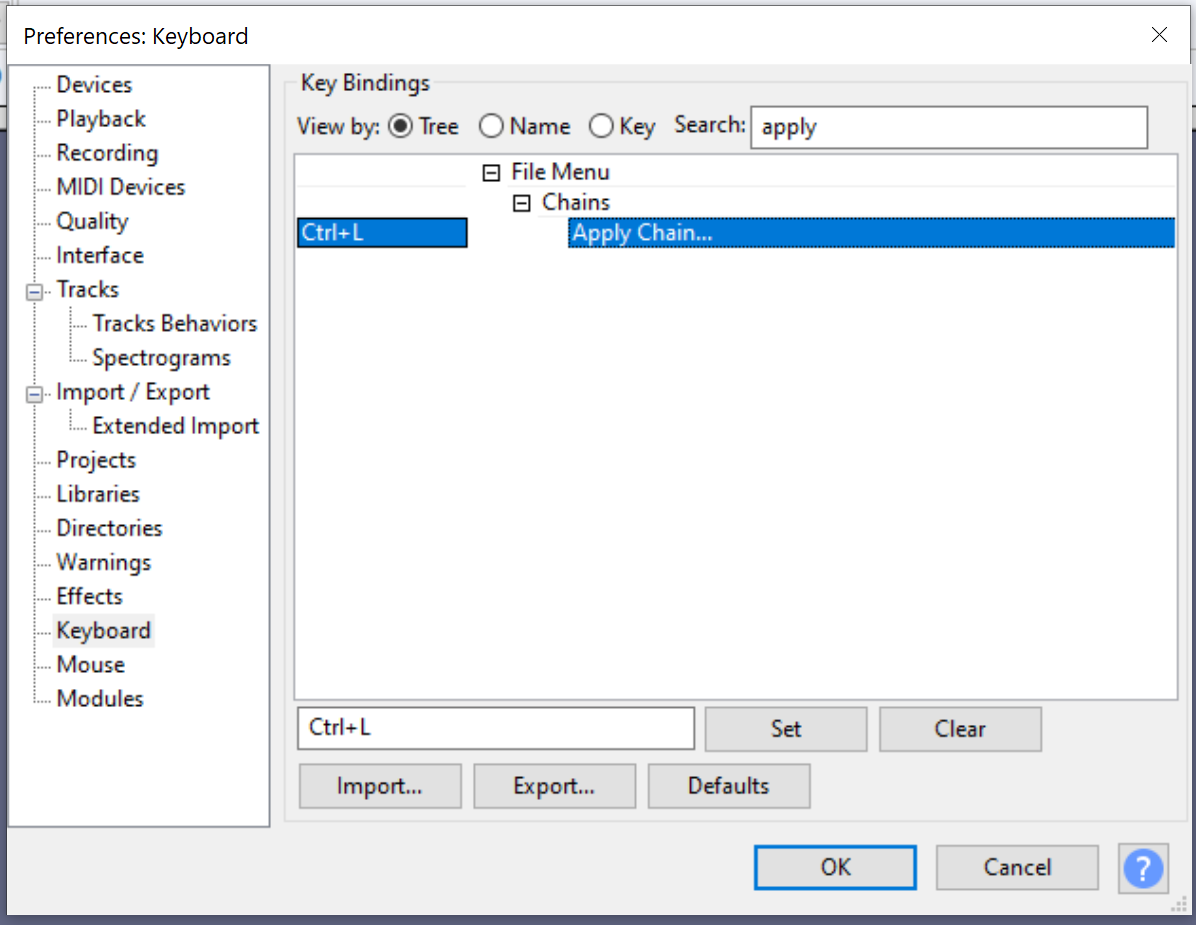
Create hotkey: 

Since I suggested adding a hotkey - mine I set up to be CTRL-L which is something else by default in audio, you don’t have to do one but you can get to altering the hotkeys in

Edit -> Preferences -> Keyboard. 

  1. Search for “Apply” and you can set something up (though you might want to check and see if assigned to something else first).

  2. Select the thing you want to make the hotkey for, and in the box below click the keys like you would like the hotkey to be. Then click “Set” and it’ll apply it to the thing


Other useful hotkeys I use:

I have two chains I use quite a bit - pitch up and pitch down. All they do is apply a +2% or -2% pitch alteration effect. But because I've made them chains, I can assign them hotkeys as you see in the below section. If you choose "apply macro - CHAIN NAME", you can make a hotkey for a specific chain if you use it a lot.


The other two hotkeys I like having assigned are:

* Export - Export As MP3
(self explanitory I think)

* Export - Export Audio
The reason for this one is there isn't by default an "Export as M4A" option. However, this is the default audio exporter which can export in any manor you audacity is set up to. The nice thing about it is, it remebers what you last chose. So if you only ever export as M4A and use the other export options to export as WAV or MP3 and only ever use this option to export as M4A, then it always keep that as the default option.

Profile

godoflaundrybaskets: (Default)
godoflaundrybaskets

December 2025

S M T W T F S
 123456
78910111213
14151617181920
21222324252627
282930 31   

Syndicate

RSS Atom

Most Popular Tags

Style Credit

Expand Cut Tags

No cut tags
Page generated Jan. 4th, 2026 08:21 pm
Powered by Dreamwidth Studios