godoflaundrybaskets: (Default)
Generate SFX Credits Spreadsheet:

A bit ago, I made a google spreadsheet that can take a list of freesound.org filenames and then generate your SFX html credits for you! I ended up sharing it again recently but I figured I'd share here as well


screenshot of googlesheet. first column is filename, last column is html


Not sure of anything I could elaborate here, but let me know if you have any questions. To make this feel like an actual useful post, I'll also give a more technical shortcut for a quick way to copy all of the files in a folder (so if your effects are organized via project, you can more easily copy over all the file names).


Macs:

Sadly I don't have one so can't make screenshots. But theoretically it's very easy according to this help article but sadly I cannot help too much there.

if you simply select several files in finder and do command+c and then paste it into a plain text document (or in an excel file for that matter) it will paste the file names.
https://discussions.apple.com/thread/1850895


Windows:


1. Open the command prompt from windows search bar

comand prompt from windows search bar

2. Open the folder that has the effects and copy the path


windows folder with a bunch of files. the file path of this folder is highlighted

3. In the command prompt type in "cd YOUR_PATH" so in my example it would be "cd C:\Users\digiella\Desktop\effects"

command from above in terminal


4. Now type in "dir /b /s |clip" --> basically this command tells the computer for print everything in this directory then copy it to the clipboard.

command from above in terminal

5. Now you can go to google sheets (or excel or whatever) and paste in what you copied. It will look like this:

results of directory copy in sheets

6. Then do the find and replace (Edit -> Find and Replace or CTRL-H) and take the beginning of the path and replace it with nothing. Set up like below.
find replace


7. You should be left with a list of just the filenames that you can copy into the spreadsheet that does the link generating.


godoflaundrybaskets: (Default)
(this is a crosspost from my twitter a while back, but I hate searching twitter and discord for things so also gonna just do a write up here :P)

Copying Ao3 tags from one work to another:

So the original tip was brought to me via discord by Cathalinaheart. The goal is bascially copy all the tags, all at once, from one ao3 work to another. A fairly common need for podfic.

To copy paste all fic tags over to the podfic at once you need a clean list of the tags separated by commas. the easiest way to get them is clicking on share on the fic, in the html is the tag list. copy paste that into your tag field, add a comma and delete the additional empty tag you created


Instructions:


You can click the images to enlarge them. Click them again to shrink them back down

  1. Open up the Ao3 work

  2. Find the "Share" button.

    it's usually in the upper right corner of the work next to the 'subscribe' button

  3. Once you click the button it will show a bunch of html

    it's usually in the upper right corner of the work next to the 'subscribe' button

  4. Find the section that you looking to copy. They'll be ordered in the normal ao3 style separated by a <br/>. So in the image above I was selecting all the "Additional Tags" for this work.

  5. Once selected, go to your ao3 work and paste them in the appropriate field. In my example, I would paste all of these into the Additional Tags section.

  6. Press enter and now all the copied tags should be there


godoflaundrybaskets: (Default)
xposted from tumblr

Was doing some research into the podfic tags on ao3 and wanted to get down some thoughts with what I found.

Disclaimer: Obviously these are just all suggestions. You are free to tag, or not tag, your work as you see fit. This is just outlining (1) how the parent tags work and (2) what are some common tags I see people using for podfic.

Podfic Availability

Most podficcers use the ao3 tags “Podfic” or “Podfic & Podficced Work” tags. What I’d suggest is actually using the “Podfic” tag. How Ao3′s tagging system works is there are parent tags and sub set tags.

For this example, I’ll just use the tags that are relevant to podfic fandom:

large grey box titled “No Fandom.” Inside that box, is 3 other boxes colored blue, red, and green. The blue box is titled “Podfic and Podficced Works.” and it contains 4 more boxes titled Podfic, Podfic Anthology, Ready by the Author, and Podfic Available. The red box is titled “Podfic Welcome” and contains a single box titled Podfic Desired. The green box is titled “Blanket Permission” and doesn’t contain any other boxes

If you filter works via the “Podfic & Podficced Works” tag, you will get anything that has been directly tagged with “Podfic & Podficced Works” but also anything tagged with Podfic, Podfic Anthology, Read by the Author, OR Podfic Available.

Conversely, if you filter works via the “Podfic” tag, you will ONLY see fics tagged with the “Podfic” tag and not anything that got solo tagged with “Podfic & Podficced Works” or things like “Podfic Avaliable”.

TLDR;
  • “Podfic & Podficced Works”: use this if you’re searching for podfic. It should pull up all works that have already been podficced. But unfortunately will also pull up all the other child tags to so it might not only be podfic. Some people use this to mark podfic though so you might pick up some others that aren't in the "Podfic" tag :/
  • “Podfic”: use this if you’re posting podfic. It will be slightly more specific and if people use the simple podfic tag to search, you’ll show up. If they use the above “Podfic & Podficced Works” tag, you will also show up!
  • “Podfic Available”: if someone has posted a podfic of your text, you can use this to indicate that someone has already podfic’d your story! Awesome!
A full outlining of what tags are included under “Podfic & Podficced Work” can be found here: https://archiveofourown.org/tags/Podfic%20*a*%20Podficced%20Works


Permission to Podfic

Permission to podfic has been traditionally an area of much discussion. As a podficcer, I’d love if everyone had a transformative works statement: whether it’s no, or yes please!, or even just “I’d rather be asked for each fic.”

If you want examples fanlore has a ton of them: https://fanlore.org/wiki/Blanket_Permission_to_Podfic

There’s not a great way in AO3 to search if someone has Blanket Permission (BP) or not; we’ve had people in the community try and solve this problem. There’s a great list of people with entries in the fanlore article about BP, but also had people within the community develop tools like https://www.fpslist.org.

Adding BP is most commonly done on your ao3 profile. I’d encourage you, even if you don’t think anyone would ever want to podfic your story, please add your own transformative work statement! Since Ao3 doesn’t currently have an easy way for us to tell if you’re open to podfic, adding a BP statement is a small thing you can do contribute to the infrastructure of podfic as a whole.

There are also some additional tags you could add to the work itself to encourage podfic:
These two tags have about 650 works overlapping (where both tags are added to a single work), but in general if you look at the metadata about the tag, they will not select the same work.


The nice things about these is instead of searching by author, this allows us to filter per work and find ones that have BP. Normally searching by author might tell you what fandoms they have written for (via fpslist.org) but it won’t tell you: characters, tropes, warnings, or anything else.

I mean, personally, I’ve literally podficing a story because it had that tag.


Other Podfic Tags


A couple other podfic tags I've seen used around  (or I'm personally trying to make happen, lol) that don't seem to be under the umbrellas mentioned above:
  • Podfic Length: X-Y
  • Audio Format: Z
  • Podfic Collaboration
  • Multivoice
  • Bloopers (has not yet been canonized)
  • Experimental Style
  • Sound Effects
  • Podfic Cover Art
If you have others you use, but I haven't mentioned I'd love to hear about them!

godoflaundrybaskets: (Default)
Example:
Post where I'm using it
https://archiveofourown.org/works/21261434

Details: I basically copied the code straight out of what ao3 suggested here: 
https://archiveofourown.org/admin_posts/14125  and just replaced with my own mp3 links. If your host doesn't provide a direct link to the mp3 like archive.org does then this new audio tag probably won't work for you.

Code:

<audio src="https://archive.org/download/capableofcomingoutalive/capable%20of%20coming%20out%20alive.mp3" controls="controls" crossorigin="anonymous" preload="metadata">
 
<p>Your browser doesn't support streaming with the HTML5 audio tag, but you can still <a href="https://archive.org/download/capableofcomingoutalive/capable%20of%20coming%20out%20alive.mp3" rel="nofollow">download this podfic</a>.</p>

</audio>
 

CSS:
audio {
  width: 100%;
  max-width: 500px;
}


What it looks like:
Three tiled windows. In each an embedded audio payer is displayed. It has a play button, a length listed and volume control in each. Firefox's embedded player is black and square. Safari's is dark grey with rounded corners. Chrome's is light gray and round.


Hosts with .mp3 links (that I know about):

✅Archive.org is working

✅Dropbox.com is working but requires some finagling (explained below)
✅Airtable.com is working (here's a guide by bluedreaming: https://archiveofourown.org/works/29325015)
✅ParakaProductions's (and other self hosts on dreamhost/backblaze/similar platforms) should work! You might need to add a .htaccess to your system if you don't have it already. An example file is avaliable from paraka here:  https://twitter.com/ParakaProducti1/status/1192946378135277569 . Can check out the note at the bottom of the announcement post for details too:  https://archiveofourown.org/admin_posts/14125
✅Backblaze - though this will require you do do some configuration to enable CORS yourself. See  revolutionaryjo's comment on this post.


Google drive generally doesn't provide direct links. Same with a lot of hosts unless you're doing the hosting yourself or with a friend like paraka. I use archive.org and that one gives you direct links to your uploaded mp3s.

When I say direct link to the mp3, I mean something like this  https://ia801509.us.archive.org/1/items/03.haunt/03.%20haunt.mp3 . Which is ending in a .mp3 file extension. When you click on a direct link to an mp3, it should load into your browser like the following picture:
https://ia801509.us.archive.org/1/items/03.haunt/03.%20haunt.mp3
Three windows tiled. In each the screen is black with an audio player at the center which is just a plain bar with a play button, a slider for where you are in the audio, and volume control.


Archive.org

Archive.org direct links to it's mp3s are fairly easily available.
  • Go to the item page which gets created when you upload the mp3
  • Find the "Download Options"
  • Click the VBR MP3 option 
  • Right click the mp3 file you want the embedded streamer
  • Select the option "Copy Link Address"
picture of archive.org item screen with the download options section in the bottom right highlighted. Under "dowload options" there is a list of options last of which is VBR MP3 which is also highlighted.
Looks the same as photo above but instead of dowload options there is a list of two mp3 files. The right click menu is open having clicked on one and "copy link address" is highlighted.

Dropbox

Create a shared link for your file.

Paste the link in your browser. It should look something like: https://www.dropbox.com/s/4km8khiuaaviaf2/Breathing%20Space.mp3?dl=0

You should be able to just paste that in as your audio source url and, change the www to a dl and then have it appear <audio src="https://dl.dropbox.com/s/4km8khiuaaviaf2/Breathing%20Space.mp3?dl=0" />

****


Old Dropbox Instructions (if the stuff above doesn't work)
old instructions )


To generate that direct mp3 link I'm talking about with dropbox you can do the following. First you need to generate a shared link (which you probably already do if your sharing your podfics through them.). Your full link should look like https://www.dropbox.com/s/d1ggsy9th8fxahy/03.%20haunt.mp3

Now that won't allow you to embed but what you can do is replace the  www.dropbox.com at the front of the url with dl.dropboxusercontent.com. Like so:
https://dl.dropboxusercontent.com/s/d1ggsy9th8fxahy/03.%20haunt.mp3

Can see the dropbox one working for me here:  https://archiveofourown.org/works/20956637  with the embedded mp3. 

All of this is also explained in this tutorial:  https://zapier.com/learn/how-to/generate-direct-dropbox-link/.
 

godoflaundrybaskets: (Default)
 

What are audacity chains:

Basically, they can keep a list of effects that will get applied to a selection of audio. They’ll be applied one after another. OR they’re also useful to keep track what you’re using particular parameters for. Like, if you use a 0.3 decay + 0.2 delay echo for telepathy and different settings for inner thoughts, but it’s the same setting. Instead of having to write those settings down and constantly switch them, you can have them saved as a chain that just applies a single effect - one which you’ve namd “telepathy” or “inner thoughts.”


Where?

File -> Chains -> Edit Chains (to add or change a chain)

File -> Chains -> Apply Chains (This will apply the chain over a selection. Importantly using the repeat effect will not “repeat” the chain. Also, I’m pretty sure there isn’t a hotkey to apply a chain. But I would advise setting one up if you’re going to regularly using them.)

((If you don't see this, you might have a newer version of audacity which this got moved to the Tools menu and renamed to "Macro". Alternate instructions for that can be found: https://docs.google.com/document/d/11i2zUA2yffEKaxPoYahJJp7XznzZHFJ6brFoB-nskqE/edit?usp=sharing)


Setting up a chain:

  1. First you want to add a chain (on the left side where it’s listing all the chains). It’ll prompt you to name it. 

  2. Start “Insert”-ing effects

  3. If you click “Insert,” it’ll bring up a list of effects. Then once you select on you can click “edit parameters” and alter the effect as you like.

  4. NOTE: When using Amplify it’s going to force you to “allow clipping”.

You are free to reorder them with the “move up” and “move down” options for the effects. They’ll be applied top/down (starting at 01). 

Applying a chain:

The chains will be ordered alphanumerically when applying them.


Similar to applying an effect, you’ll select the audio you want to apply the chain too (in the case of “FINAL CLEAN UP”, unsurprisingly I’m applying it to the whole of the audio.) But in general, it works just like you’d normally apply an effect. 


You select the effect you want to apply and choose “Apply to Current Project.” When you bring up the Apply Chain menu, it’ll automatically select the one you’ve last applied.


Create hotkey: 

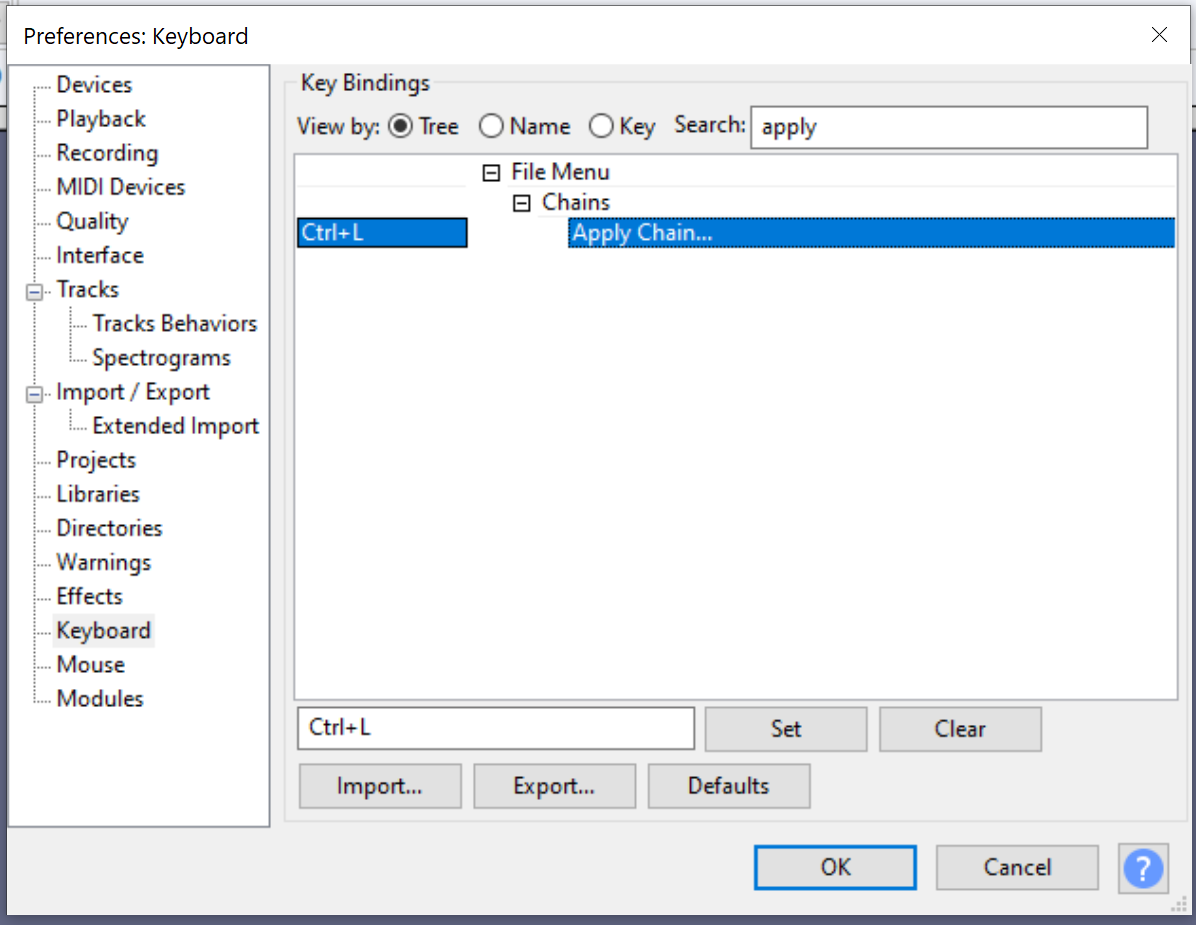
Since I suggested adding a hotkey - mine I set up to be CTRL-L which is something else by default in audio, you don’t have to do one but you can get to altering the hotkeys in

Edit -> Preferences -> Keyboard. 

  1. Search for “Apply” and you can set something up (though you might want to check and see if assigned to something else first).

  2. Select the thing you want to make the hotkey for, and in the box below click the keys like you would like the hotkey to be. Then click “Set” and it’ll apply it to the thing


Other useful hotkeys I use:

I have two chains I use quite a bit - pitch up and pitch down. All they do is apply a +2% or -2% pitch alteration effect. But because I've made them chains, I can assign them hotkeys as you see in the below section. If you choose "apply macro - CHAIN NAME", you can make a hotkey for a specific chain if you use it a lot.


The other two hotkeys I like having assigned are:

* Export - Export As MP3
(self explanitory I think)

* Export - Export Audio
The reason for this one is there isn't by default an "Export as M4A" option. However, this is the default audio exporter which can export in any manor you audacity is set up to. The nice thing about it is, it remebers what you last chose. So if you only ever export as M4A and use the other export options to export as WAV or MP3 and only ever use this option to export as M4A, then it always keep that as the default option.

Profile

godoflaundrybaskets: (Default)
godoflaundrybaskets

December 2025

S M T W T F S
 123456
78910111213
14151617181920
21222324252627
282930 31   

Syndicate

RSS Atom

Most Popular Tags

Style Credit

Expand Cut Tags

No cut tags
Page generated Jan. 3rd, 2026 05:56 pm
Powered by Dreamwidth Studios